Appearance
Data Process
This guide is for developers to help you quickly integrate with the EO Platform's data processing module. From frontend interaction and backend scheduling to result retrieval, this document provides a complete technical workflow, code examples, and debugging advice.
1. Prerequisites
Before starting the integration, please ensure the following environment is ready:
- Account Permissions: You need access and write permissions for the "Data Processing" module.
- Input Data: Data must be uploaded in the "Data Storage" module, preferably in GeoTIFF format (single-band or multi-band).
- Running Services:
data_management_service(Java service) is deployed and connected to PostgreSQL.data_process_service(Python service) is running correctly, connected to PostgreSQL, and can access the shared file system.gis_service: Running correctly.
- Shared Storage: The frontend, backend, and Python services share object storage, ensuring read and write permissions.
2. Feature Overview
The data processing module provides several remote sensing image processing capabilities that can lay the foundation for subsequent analysis:
| Processing Type | Function Description | Common Scenarios |
|---|---|---|
| Band Merging | Combines multiple single-band images into one multi-band image | Creating RGB, false-color images, enhancing feature recognition |
| Imagery Mosaicking | Seamlessly stitches multiple images | Creating maps covering large areas in batches |
| Imagery Fusion | Fuses panchromatic and multispectral imagery to improve resolution | High-resolution remote sensing image generation |
| Cloud Removal | Automatically identifies and removes clouds | Improving image quality for subsequent classification and monitoring |
| NDVI | Normalized Difference Vegetation Index, measures vegetation cover and health | Agricultural monitoring, ecological assessment |
| EVI | Enhanced Vegetation Index, improves on shadow and soil background effects | Monitoring dense vegetation areas |
| NDWI | Normalized Difference Water Index, enhances the contrast between water and land | Water body extraction, flood monitoring |
| NDBI | Normalized Difference Built-up Index, highlights urban built-up areas | Urban expansion, land use classification |
| BAI | Burned Area Index, identifies post-fire areas | Fire monitoring, disaster assessment |
⚠️ If you need to extend to a new processing type, please register the task type in
data_process_serviceand synchronize it in the task type enum ofdata_management_service.
2.1 Task Type Enum (TaskType)
| Enum Name | Value | Description | Typical Input | Typical Output |
|---|---|---|---|---|
FUSION | 1 | Imagery fusion (Pan-sharpen, etc.) | Panchromatic + Multispectral | High-resolution multi-band image |
MOSAIC | 2 | Imagery mosaicking | Multiple images with the same CRS | Large-scene stitched image |
Cloud_Remove | 4 | Cloud removal | Cloudy image, cloud mask, cloud-free image | Cloud-free image |
BAND_MERGED | 6 | Merge bands | Multiple single bands | Multi-band image |
NDVI | 7 | Index calculation NDVI | NIR + Red | Single-band index image |
EVI | 8 | Index calculation EVI | NIR + Red + Blue | Single-band index image |
NDWI | 9 | Index calculation NDWI | Green + NIR | Single-band index image |
NDBI | 10 | Index calculation NDBI | SWIR + NIR/Red | Single-band index image |
BAI | 11 | Index calculation BAI | Red + NIR | Single-band index image |
The frontend
Processing Typefield must be consistent with the enum above, otherwise the Worker will refuse to execute.
3. System Architecture and Flow

The data processing module uses an asynchronous queue architecture, implementing a "frontend submits task → backend polls for processing → frontend queries" model:
- Frontend: Users create tasks and view progress in the UI.
- data_management_service (Java): Handles API requests, writing/reading tasks to/from the database.
- PostgreSQL: Stores task records, acting as a message queue.
- data_process_service (Python): Polls the database and executes the actual data processing logic.
- GIS Service: Tiles and publishes the processed imagery.
4. Core Development Workflow
4.1 Create Processing Task (Triggered by Frontend)
- The user clicks Add Task to open the task creation dialog.
- Select the processing type, input data, output path, and filename.
- After submission, the frontend calls the Create Processing Task API to get a task ID.
4.2 Task Scheduling (data_management_service (Java)/data_process_service(Python))
data_management_servicewrites the task to PostgreSQL with the status set toNOT_STARTED.data_process_servicepolls every 60 seconds:- Uses
SELECT ... FOR UPDATEto lock the earliest pending task. - Updates status to
DOWNLOADINGand downloads the imagery. - Sets status to
DOWNLOADEDafter download is complete. - Updates status to
PROCESSINGand executes the specific algorithm. - Sets status to
PROCESSING_COMPLETEDafter the algorithm finishes. - If a publishing step is included, it enters
PUBLISHING, and is set toPUBLISH_COMPLETEDupon completion. - In case of exceptions:
DOWNLOAD_FAILEDfor download failure;PROCESSING_FAILEDfor processing failure;PUBLISH_FAILEDfor publishing failure, all with anerrorMessagerecorded.
- Uses
4.3 Progress Update
The status is refreshed every time the frontend reloads the current list page by calling the Query Task List API.
4.4 View Results (Triggered by Frontend)
- When
status = PUBLISH_COMPLETED, the API will return information likeresult.outputFileId,result.previewUrl, etc. - The task details page displays:
- Basic task information (name, type, input imagery, etc.).
- Input data list and band mapping.
- Result preview image.
4.5 Previewing Image Processing Results
- Call the Query Task Detail API with the taskId to get the
metadataIdafter publishing. - Call the Raster Publish Detail API.
- Render the image using ge3d.
5. API Quick Index
| Capability | API | Description |
|---|---|---|
| Query File Band Info | POST /processtask/query/file/bandInfo | Query Band Info |
| Create Task | POST /processtask/addTask | Create an asynchronous processing task |
| Query Task Detail | GET /processtask/query/task/detail | Returns status, error message, and results |
| Raster Publish Detail | GET /metadata/query/raster/publishUrl | Get details of a published image |
| Query Task List | POST /processtask/query/page | Supports pagination and filtering |
| Delete Task | DELETE /processtask/delete | Delete a record by task ID |
API parameters, field descriptions, and error codes are provided in the corresponding links and are not repeated here.
6. Task Status (TaskStatus)
The platform uses the following status enums:
NOT_STARTED = 0Not Started (created successfully, not yet queued)DOWNLOADING = 1Downloading (Python service is downloading imagery to local/cache)DOWNLOADED = 2Downloaded (input data is ready, awaiting processing)PROCESSING_COMPLETED = 3Processing Completed (processing stage finished successfully, ready to publish)PROCESSING_FAILED = 4Processing Failed (algorithm stage failed, includes error message)PROCESSING = 5Processing (algorithm is executing)PUBLISHING = 6Publishing (writing/registering results to storage/catalog service)PUBLISH_COMPLETED = 7Publish Completed (results can be queried/downloaded/previewed)PUBLISH_FAILED = 8Publish Failed (ingestion or registration failed)DOWNLOAD_FAILED = 9File Download Failed (input retrieval failed)
6.1 Complete Status Flow
The complete task lifecycle should follow this sequence to unify frontend/backend logic and alerting:
NOT_STARTED (0)→ Task created successfully, waiting to be queuedDOWNLOADING (1)→ Worker pulls input files to local or cacheDOWNLOADED (2)→ Input data is ready, enters processing queuePROCESSING (5)→ Execute algorithm (crop/fuse/mosaic/index, etc.)PROCESSING_COMPLETED (3)→ Processing stage ends successfully, ready to publish or write backPUBLISHING (6)→ Register results to storage/catalog/preview servicePUBLISH_COMPLETED (7)→ Publish complete, results can be queried/downloaded/previewed
Exception branches:
DOWNLOAD_FAILED (9): Input file download failed → Supports retrying the download or terminating the taskPROCESSING_FAILED (4): Algorithm execution failed → Display error message, supports "Resubmit"PUBLISH_FAILED (8): Result registration failed → Supports "Retry Publish" or rollback
6.2 Status Sequence Diagram
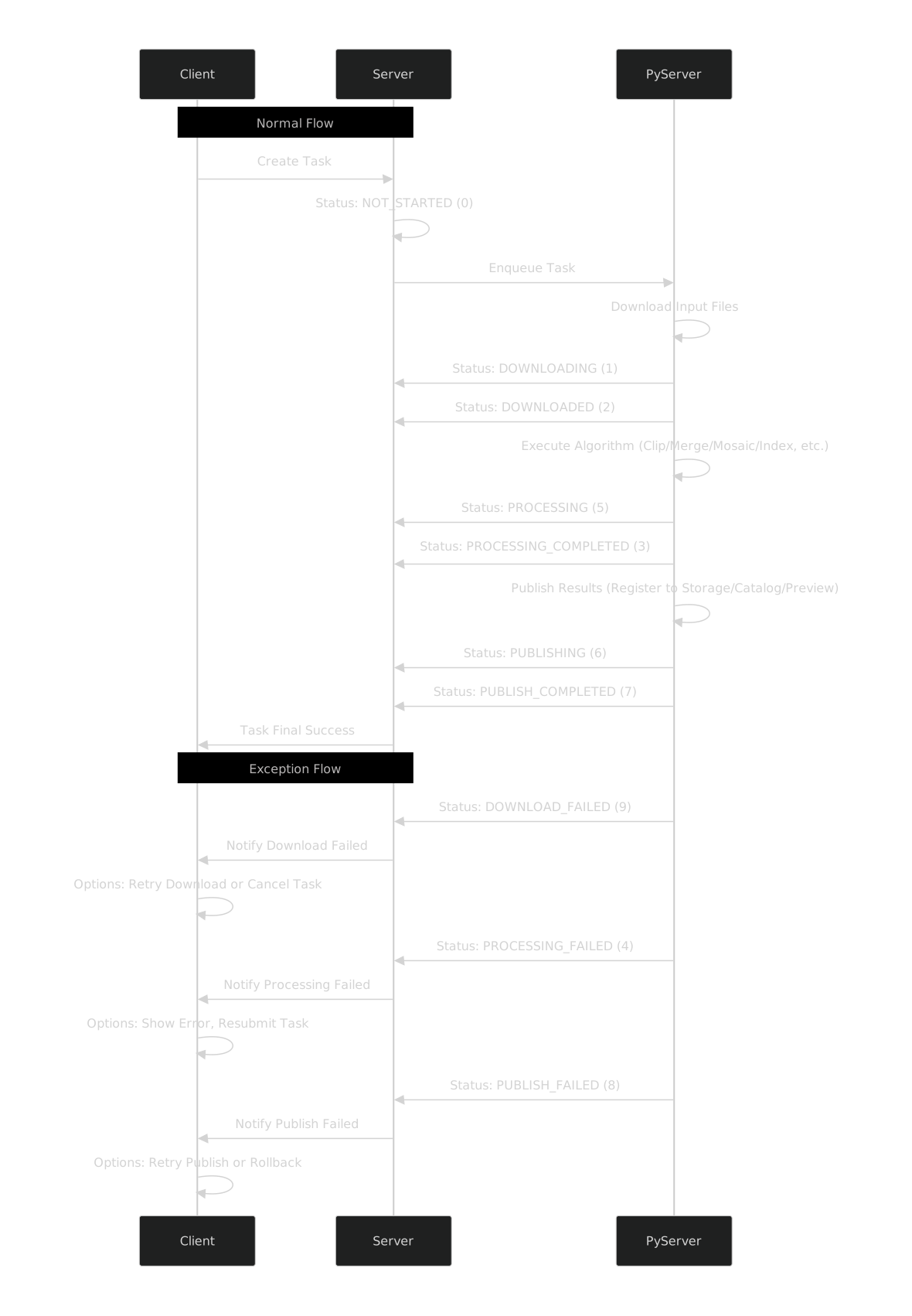
Placeholder Note: Please name your generated state machine image
guide/data-process-state.svg(or adjust the reference path above) and replace the placeholder image to display it in the document.
7. Best Practices
7.1 Band Merging
- Input Requirements: Input single-band or multi-band GeoTIFF images.
- Performance Suggestion: Crop to the ROI (Region of Interest) before merging to reduce processing load.
7.2 Imagery Mosaicking
- Data Preparation: Images need to have some overlap and a consistent coordinate system.
- Edge Blending: The default GDAL algorithm is used to eliminate seams.
- Output Size: The mosaicked image can be very large; please estimate storage consumption.
7.3 Cloud Removal
- Prioritize using input images with cloud probability or cloud masks.
- For Sentinel-2 and Landsat data, the quality mask (QA Band) can be used to assist processing.
- It is recommended to perform a visual check to confirm the quality after processing.
7.4 Imagery Fusion
- Data Preparation: Requires a high-resolution panchromatic image and a corresponding multispectral image of the same scene or region.
- Resolution and Registration: It is recommended that both have good geometric registration and the same Coordinate Reference System (CRS). Resampling and registration should be performed beforehand if necessary.
- Typical Use: To improve spatial resolution while preserving spectral characteristics as much as possible.
7.5 Index Calculation
- Supports common indices like NDVI, NDWI, etc. The formula must be specified in the task parameters.
- Ensure that the input bands match the index requirements, e.g., NDVI requires NIR and Red bands.
8. Debugging and Troubleshooting
| Symptom | Possible Cause | Recommended Action |
|---|---|---|
Task stuck at NOT_STARTED for a long time | Python service is not running or database connection is abnormal | Check Python data_process_service logs and health status |
Task fails and errorMessage contains FileNotFound | Invalid input file ID or file has been deleted | Confirm the file still exists in data storage |
| Task fails with insufficient permissions | No write permission for the output path, or Worker's object storage credentials are insufficient | Verify storage mount path permissions |
| API returns 401/403 | Token expired or role is missing | Re-apply for a Token, confirm user permissions |
| Result preview is missing | Processing succeeded but no preview was generated | Check if the preview generation logic in Python data_process_service was executed |
9. Performance and Extension Suggestions
- Task Concurrency: It is recommended that each
data_process_servicehandles 1 task at a time to avoid I/O contention; throughput can be increased by horizontally scaling Worker instances. - Task Queue Governance: Regularly clean up expired or failed tasks to prevent queue buildup from affecting scheduling.
- Monitoring Metrics:
- Task processing duration.
- Failure rate and distribution of error types.
data_process_serviceCPU/GPU, memory, and disk I/O.
10. Frequently Asked Questions (FAQ)
Q1: How to support a new processing type?
Add a new processing type enum in the Java Service, register the corresponding Task class in the Python Worker, implement the execute_processing logic, and synchronize the frontend enum.
Q2: Is task cancellation supported?
Currently, only deleting pending tasks (pending) is supported; canceling a running task is not.
Q3: Can the results be used as input again?
Yes. The processing results are written to the data storage module and can be referenced again from the "Select Data" selector.
Q4: How to troubleshoot a data_process_service process crash?
Check the status of manage.py runserver and start_celery_scheduler through the process manager, locate the specific exception using the logs, and then fix it based on the error type.